Below are step by step instructions for setting up SSH access to an Github git repository
Create SSH key
First create a key via ssh-keygen
cd ~/.ssh
ssh-keygen -f github -t rsa -b 4096
You will be asked for passphrase I’ve had issues with using one with VSCode / Remote WSL so suggest not using one.
A typical output will look like below:
$ ssh-keygen -f github -t rsa -b 4096
Generating public/private rsa key pair.
Enter passphrase (empty for no passphrase):
Enter same passphrase again:
Your identification has been saved in codecommit.
Your public key has been saved in codecommit.pub.
The key fingerprint is:
SHA256:1nDTaZZ7vUjfYjxcSwW+OEEpCGUrhcJ8HgShPd+iv+Y stephen@navi
The key's randomart image is:
+---[RSA 4096]----+
|   oo+o++.  ...  |
|   o+ +o...o.+ . |
|  . o+..o o.B . .|
|     o.o + + + o.|
|      o S . +.o.o|
|     . o    .=+.+|
|    .        .*+.|
|     ..      . o |
|     oE.         |
+----[SHA256]-----+
Github Configuration
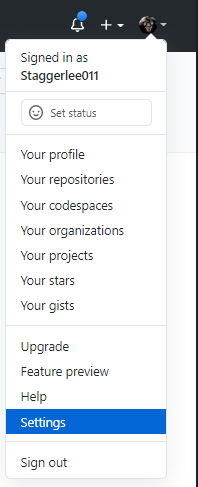
Now log into your Github account, from the upper-right corner, click your profile photo, then click Settings
Click SSH and GPG keys
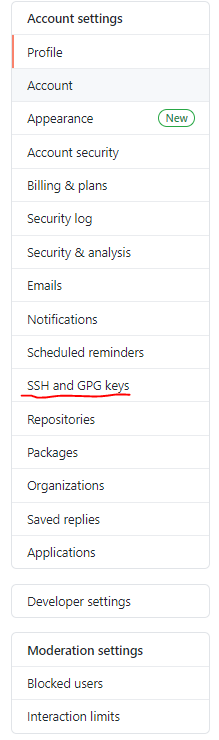
Click New SSH Key

Copy and Paste your new public ssh key into the window and give it a name :
cat ~/.ssh/github.pub
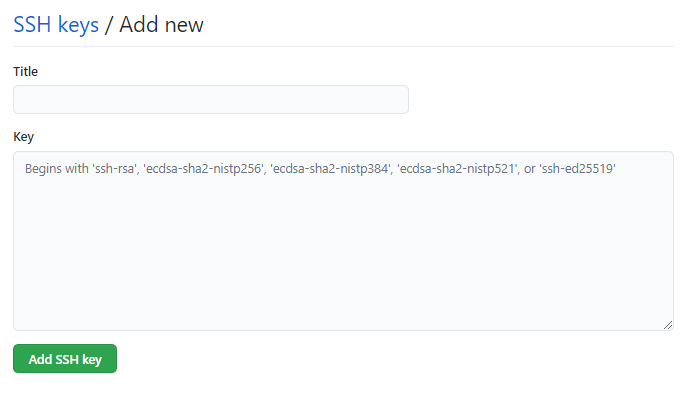
If prompted confirm your Github password.
Configure -Agent
Check the ssh-agent is running
eval `ssh-agent -s`
if you get a response of Agent pid <number> then its up
Add your new ssh key
ssh-add ~/.ssh/github
If successful you get a message like: Identity added: /home/stephen/.ssh/github (/home/stephen/.ssh/github)